1️⃣ What is Word Processing?
Word Processing is the creation, editing, formatting, and printing of documents using computer software. It has replaced traditional typewriters and handwriting for creating professional documents.
🎯 Why Use Word Processing Software?
Traditional methods (handwriting, typewriter) have limitations like:
- No ability to save and edit
- Cannot format text attractively
- No spell checking
- Cannot insert images or objects
- Difficult to maintain consistency
- No copy-paste functionality
- Mistakes require complete rewriting
✨ Benefits of Word Processing Software
📄 Creation & Editing
Create and modify documents easily anytime
🖼️ Insert Objects
Add images, shapes, tables, charts
💾 Save & Retrieve
Store and open documents whenever needed
🖨️ Print Preview
Check before printing to save paper
✅ Spell Check
Automatic error detection and correction
🔍 Find & Replace
Quick text search and replacement
✉️ Mail Merge
Create personalized mass documents
🎨 Formatting
Beautiful text styling and layouts
2️⃣ Popular Word Processing Software
| Software Name | Producer | Type | File Extension |
|---|---|---|---|
| Microsoft Word 2021 | Microsoft Corporation | Commercial (Paid) | .docx |
| LibreOffice Writer | The Document Foundation | Free & Open Source (FOSS) | .odt |
| OpenOffice Writer | Apache Software Foundation | Free & Open Source (FOSS) | .odt |
| Google Docs | Free (Cloud-based) | .gdoc | |
| AbiWord | Source Gear Corporation | Free & Open Source | .abw |
| Apple Pages | Apple Inc. | Free (for Mac users) | .pages |
☁️ Cloud Computing for Word Processing
Advantages:
- ✅ No software installation needed
- ✅ No hard disk space required
- ✅ Access from any computer with internet
- ✅ Automatic saving to cloud storage
- ✅ Real-time collaboration with others
- ✅ Always up-to-date version
Examples: Google Docs, Microsoft 365 Online, Zoho Writer
3️⃣ Microsoft Word 2021 Interface
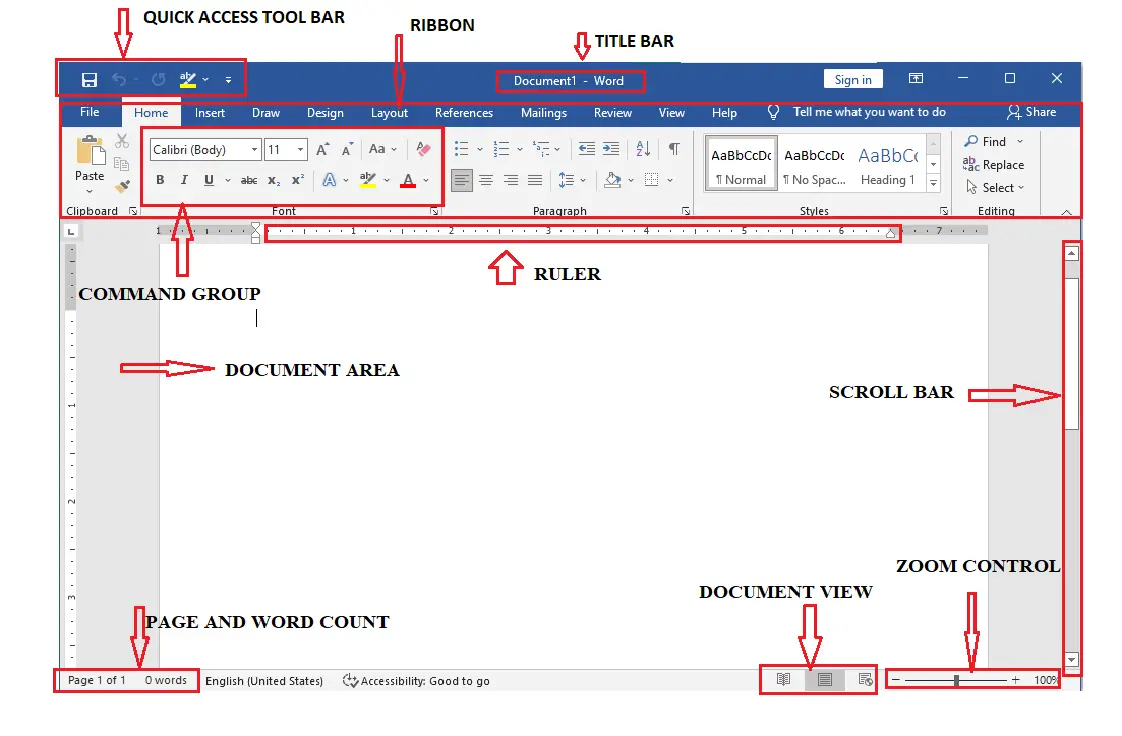
Microsoft Word Ribbon Interface showing various tabs and tools
🔧 Key Components of Word 2021
1. Title Bar
• Located at the very top of the window
• Shows the document name (e.g., "Document1" for new files)
• Contains window control buttons (Minimize, Maximize/Restore, Close)
• File name appears here after saving
2. Ribbon
• Organized collection of tools in tabs
• Main feature of Word 2021 interface
• Can be collapsed or expanded
• Contextual tabs appear when needed

Home Ribbon in MS Word
📑 Main Ribbon Tabs in Word 2021:
- File Tab: Save, Open, Print, Share, Export
- Home Tab: Font, Paragraph, Styles, Editing (most commonly used)
- Insert Tab: Tables, Pictures, Shapes, Header/Footer, Page Numbers
- Draw Tab: Drawing tools, pen input (NEW in 2021)
- Design Tab: Themes, Colors, Fonts, Page borders
- Layout Tab: Margins, Orientation, Columns, Spacing
- References Tab: Table of contents, Footnotes, Citations
- Mailings Tab: Mail Merge, Envelopes, Labels
- Review Tab: Spell check, Comments, Track Changes
- View Tab: Reading view, Print layout, Ruler, Zoom
3. Quick Access Toolbar
• Small toolbar above or below the ribbon
• Contains frequently used commands
• Can be customized by adding/removing tools
• Quick access to Save, Undo, Redo
4. Status Bar
• Located at the bottom of the window
• Shows page number, word count, language
• View buttons (Read Mode, Print Layout, Web Layout)
• Zoom slider
5. Scroll Bar
• Vertical bar on right side
• Navigate through document
• Click arrows or drag slider
6. Zoom Control
• Adjust viewing size (10% to 500%)
• Does NOT affect printing
• Located in bottom-right corner
🆕 What's New in Word 2021?
- ✨ Improved dark mode
- ✨ Better collaboration features
- ✨ Enhanced accessibility checker
- ✨ New drawing and inking tools
- ✨ Improved performance and speed
4️⃣ Document Basics - Creating, Saving & Opening
📄 Creating a New Document
Method 1: File → New → Blank Document
Method 2: Press Ctrl + N shortcut key
Method 3 (LibreOffice): File → New → Text Document
💾 Saving Documents
Saving for the First Time:
- Press Ctrl + S or File → Save
- Choose saving location (Documents, Desktop, USB)
- Type a meaningful file name
- Select file type (.docx is default)
- Click Save button
📁 Important File Extensions
| MS Word 2021/2019/2016: | .docx |
| MS Word 97-2003: | .doc (older format) |
| LibreOffice Writer: | .odt |
| PDF Format: | .pdf (cannot be edited easily) |
| Rich Text Format: | .rtf (compatible with all software) |
💾 Save As (Different Name or Location)
Use when you want to:
- Create a copy with different name
- Save in different location
- Change file format
- Keep original and create modified version
🔒 Password Protection
For Microsoft Word 2021:
- File → Save As
- Choose location and file name
- Click "Tools" dropdown (bottom of dialog)
- Select "General Options"
- Enter password in "Password to open" field
- Click OK
- Re-enter password to confirm
- Click Save
For LibreOffice Writer:
- File → Save As
- Check the box "Save with password"
- Click Save
- Enter password twice
- Click OK
⚠️ Password Tips
- Use strong passwords (mix letters, numbers, symbols)
- Remember or write down password securely
- If forgotten, document cannot be recovered!
- Don't share password with unauthorized people
📂 Opening Saved Documents
Steps:
- File → Open (or Ctrl + O)
- Navigate to file location
- Select the document
- Click Open button
❌ Closing Documents
• File → Close
• Always save before closing
• Word will prompt if unsaved changes exist
5️⃣ Page Setup
Portrait Orientation
Landscape Orientation
Portrait (vertical) vs Landscape (horizontal) page orientation
MS Word 2021: Layout Tab → Page Setup group
LibreOffice Writer: Format → Page
📏 Important Page Setup Options
1. Paper Size
| Size | Dimensions | Common Use |
|---|---|---|
| A4 | 21 cm × 29.7 cm | Most common worldwide |
| A5 | 14.8 cm × 21 cm | Small documents, booklets |
| Letter | 8.5" × 11" | USA standard |
| Legal | 8.5" × 14" | Legal documents |
| B4 | 25 cm × 35.3 cm | Large documents |
2. Orientation
- Portrait (Vertical):
- Default orientation
- Height is greater than width
- Used for letters, reports, essays
- Shortcut: Portrait button in Layout tab
- Landscape (Horizontal):
- Width is greater than height
- Used for tables, charts, certificates
- Good for wide content
- Shortcut: Landscape button in Layout tab
3. Margins
Spacing between text and paper edges:
📐 Margin Settings
- Top Margin: Space from top edge
- Bottom Margin: Space from bottom edge
- Left Margin: Space from left edge
- Right Margin: Space from right edge
Common Settings:
- Normal: 2.54 cm (1 inch) all sides
- Narrow: 1.27 cm (0.5 inch) all sides
- Wide: 5.08 cm left/right, 2.54 cm top/bottom
How to Set Margins (Word 2021):
- Layout Tab → Margins
- Choose preset option OR
- Click "Custom Margins"
- Enter exact measurements
- Click OK
6️⃣ Text Selection Methods
Before formatting, you must select the text you want to change:
| To Select | Method | Shortcut (if any) |
|---|---|---|
| Single word | Double-click on the word | - |
| A sentence | Hold Ctrl + Click anywhere in sentence | Ctrl + Click |
| A paragraph | Triple-click anywhere in paragraph | Triple-click |
| Entire document | Click and drag OR use keyboard | Ctrl + A |
| A line | Click in left margin next to line | - |
| Multiple lines | Click and drag in left margin | - |
| Any text | Click at start, hold and drag to end | - |
| Non-continuous text | Select first part, hold Ctrl, select more | Ctrl + Select |
7️⃣ Text Formatting
Text formatting changes the appearance of individual characters and words.
✏️ Basic Text Formatting Shortcuts
🎨 Font Formatting Options
1. Font Type (Font Face)
Different styles of letters:
- Arial - Clean, modern, sans-serif
- Times New Roman - Traditional, with serifs
- Calibri - Default in Word 2021, easy to read
- Comic Sans MS - Casual, informal
- Courier New - Looks like typewriter
2. Font Size
Measured in points (pt):
- 8-10 pt: Small text, footnotes
- 11-12 pt: Normal body text (most common)
- 14-16 pt: Subheadings
- 18-24 pt: Main headings
- 26+ pt: Titles, posters
3. Font Color
• Change text color from Home Tab → Font → Font Color
• Choose from standard colors or custom colors
• Use for emphasis, headings, or design
4. Text Highlight Color
• Add background color to text (like marker pen)
• Home Tab → Font → Text Highlight Color
• Useful for marking important information
5. Text Effects
- Strikethrough: Line through text
- Superscript: X² (for math, footnotes) - Ctrl + Shift + =
- Subscript: H₂O (for chemistry) - Ctrl + =
- Small Caps: MAKES TEXT LOOK LIKE THIS
- All Caps: EVERYTHING UPPERCASE
6. Change Case
Options in Change Case (Home → Font → Change Case):
- Sentence case: First letter capital
- lowercase: all letters small
- UPPERCASE: ALL LETTERS CAPITAL
- Capitalize Each Word: Every Word Starts With Capital
- tOGGLE cASE: rEVERSES cURRENT cASE
💡 Font Dialog Box
For more options, open Font dialog box:
- Shortcut: Ctrl + D
- Or: Home Tab → Font group → click small arrow in corner
- Contains: All font options in one place
8️⃣ Paragraph Formatting
Left Aligned Text
This text is aligned to the left margin. The right edge appears ragged.
Center Aligned Text
This text is centered on the page. Both edges appear ragged.
Right Aligned Text
This text is aligned to the right margin. The left edge appears ragged.
Justified Text
This text is aligned to both the left and right margins. It creates straight edges on both sides.
Four types of text alignment: Left, Center, Right, and Justify
📐 Text Alignment
Types of Alignment:
- Left Align (Default):
- Text lines up on left margin
- Right edge is ragged (uneven)
- Most common for body text
- Easy to read
- Center Align:
- Text centered on page
- Both edges ragged
- Used for titles, headings
- Used for invitations, certificates
- Right Align:
- Text lines up on right margin
- Left edge is ragged
- Used for dates in letters
- Used for page numbers
- Justify:
- Text lines up on both margins
- Creates straight edges on both sides
- Used in newspapers, magazines
- Professional appearance
📏 Indentation
Left Indent
All lines indented from left
First Line Indent
Only first line indented
Hanging Indent
First line at margin, others indented
Different types of indentation: Left, First Line, and Hanging
Types of Indentation:
- Left Indentation:
- Moves entire paragraph away from left margin
- All lines of paragraph indented equally
- Used for quotations, sub-points
- Right Indentation:
- Moves entire paragraph away from right margin
- Creates narrower text column
- Less commonly used
- First Line Indent:
- Only first line of paragraph indented
- Other lines start at left margin
- Traditional for essays, stories
- Usually 0.5 inch or 1.27 cm
- Hanging Indent:
- First line at margin, other lines indented
- Opposite of first line indent
- Used for bibliographies, references
- Used for dictionary entries
Setting Indentation (Word 2021):
Method 1: Layout Tab → Paragraph → Indentation boxes
Method 2: Home Tab → Paragraph → click dialog launcher
Method 3: Use ruler (View → Ruler to show)
📊 Line and Paragraph Spacing
Line Spacing (Space between lines):
- Single (1.0): No extra space between lines
- 1.5 lines: 50% extra space (common for assignments)
- Double (2.0): 100% extra space (for drafts, editing)
- Multiple: Custom spacing (1.5, 2.5, 3.0, etc.)
Paragraph Spacing:
- Before: Space before paragraph starts
- After: Space after paragraph ends
- Measured in points (pt)
- Default: 8-10 pt after paragraphs
🔲 Borders and Shading
Adding Borders:
Access: Home Tab → Paragraph → Borders button
Border options:
- Bottom border (single line under paragraph)
- Top border
- Left/Right borders
- Box (all four sides)
- Custom borders
- Page borders (entire page)
Adding Shading (Background Color):
Access: Home Tab → Paragraph → Shading button
- Adds background color to paragraph
- Choose from theme colors or standard colors
- Use light colors for readability
9️⃣ Bullets and Numbering
Lists help organize information clearly and make it easy to read.
🔹 Bullet Lists (Unordered Lists)
When to use: When order doesn't matter
Examples: Shopping lists, features, options
Creating Bullet Lists:
Method 1: Home Tab → Paragraph → Bullets button
Method 2: Type * and press Space, then type text
Bullet Styles Available:
- ● Round bullet (default)
- ○ Hollow circle
- ■ Square
- ✓ Check mark
- ➢ Arrow
- ⬥ Diamond
🔢 Numbered Lists (Ordered Lists)
When to use: When order or sequence matters
Examples: Steps, instructions, rankings
Creating Numbered Lists:
Method 1: Home Tab → Paragraph → Numbering button
Method 2: Type 1. and press Space, then type text
Numbering Styles:
- 1, 2, 3... (Arabic numerals)
- I, II, III... (Roman numerals - uppercase)
- i, ii, iii... (Roman numerals - lowercase)
- A, B, C... (Letters - uppercase)
- a, b, c... (Letters - lowercase)
📋 Multilevel Lists
Create hierarchical lists with main points and sub-points:
Example of Multilevel List:
1. Computer Hardware
a. Input Devices
i. Keyboard
ii. Mouse
b. Output Devices
i. Monitor
ii. Printer
2. Computer Software
Creating Multilevel Lists:
- Click Multilevel List button (Home → Paragraph)
- Choose list style
- Type first main point, press Enter
- Press Tab to move to sub-level
- Type sub-point, press Enter
- Press Shift + Tab to return to main level
💡 List Tips
- Tab: Increase indent (move right, create sub-level)
- Shift + Tab: Decrease indent (move left, return to main level)
- Enter: Create new list item at same level
- Enter twice: End the list
🔟 Inserting Objects into Documents
Make documents more attractive and informative by adding various objects.
🖼️ Pictures and Images
MS Word 2021:
Insert Tab → Pictures
Picture sources in Word 2021:
- This Device: From your computer
- Stock Images: Free images from Microsoft (NEW!)
- Online Pictures: Search Bing for images
LibreOffice Writer:
Insert → Picture → From File
After Inserting Image:
- Click image to select
- Drag corners to resize (hold Shift for proportional)
- Drag image to move position
- Use Picture Format tab for effects
🔷 Shapes
Access: Insert Tab → Shapes
Available shapes:
- Lines: Straight, arrows, curves
- Rectangles: Squares, rounded rectangles
- Basic Shapes: Circles, triangles, stars
- Block Arrows: Directional arrows
- Equation Shapes: Math symbols
- Flowchart: Process, decision, document shapes
- Stars and Banners: Decorative shapes
- Callouts: Speech bubbles
How to Insert Shapes:
- Insert → Shapes
- Click desired shape
- Click and drag on page to draw
- Release mouse when size is correct
- Format using Shape Format tab
🔣 Symbols and Special Characters
Insert characters not available on keyboard.
MS Word 2021:
Insert Tab → Symbol → More Symbols
Common Symbols:
| Symbol | Name | Use |
|---|---|---|
| © | Copyright | Copyright notices |
| ® | Registered | Trademark |
| ™ | Trademark | Brand names |
| ° | Degree | Temperature, angles |
| ± | Plus-minus | Mathematics |
| × | Multiply | Mathematics |
| ÷ | Divide | Mathematics |
| € | Euro | Currency |
| £ | Pound | Currency |
| ¥ | Yen | Currency |
📊 Tables
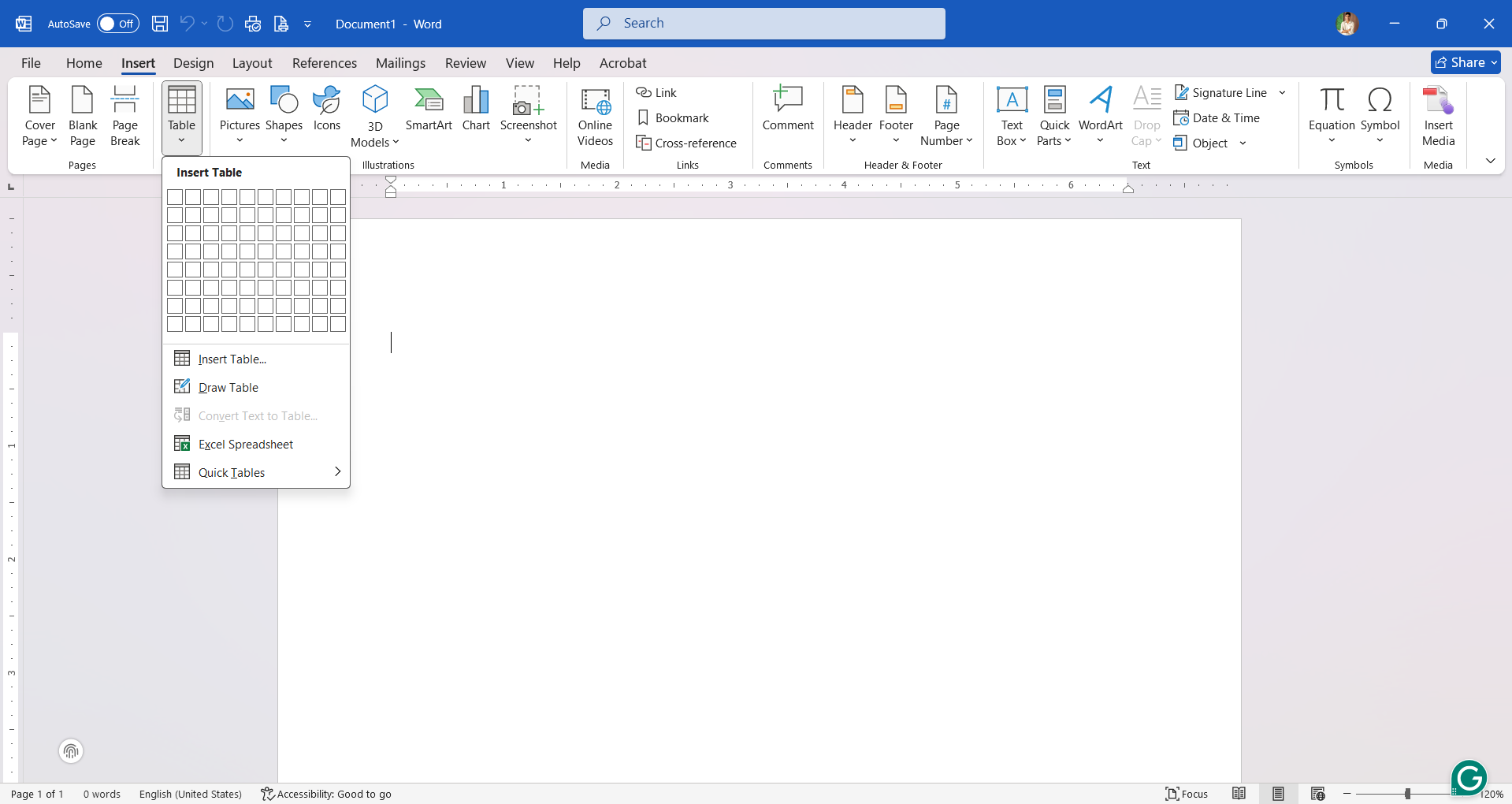
Example of a table inserted into a Word document
Inserting Tables (Word 2021):
Method 1: Quick Table
- Insert Tab → Table
- Hover over grid to select rows and columns
- Click to insert
Method 2: Insert Table Dialog
- Insert Tab → Table → Insert Table
- Specify exact number of rows and columns
- Click OK
Method 3: Draw Table
- Insert Tab → Table → Draw Table
- Draw custom table with mouse
Table Operations:
| Operation | How To |
|---|---|
| Insert Row Above | Right-click row → Insert → Insert Rows Above |
| Insert Row Below | Right-click row → Insert → Insert Rows Below |
| Insert Column Left | Right-click column → Insert → Insert Columns to Left |
| Insert Column Right | Right-click column → Insert → Insert Columns to Right |
| Delete Row | Select row → Right-click → Delete Rows |
| Delete Column | Select column → Right-click → Delete Columns |
| Merge Cells | Select cells → Right-click → Merge Cells |
| Split Cells | Select cell → Right-click → Split Cells |
| Change Text Direction | Table Tools → Layout → Text Direction |
Table Formatting:
- Table Styles (pre-designed looks)
- Shading (cell background colors)
- Borders (line styles and colors)
- Cell alignment (top, middle, bottom)
- Cell margins and spacing
🎨 WordArt
Create decorative, stylized text
Access: Insert Tab → WordArt
Use for: Titles, headings, certificates, posters
📄 Header and Footer
Header: Text that appears at top of every page
Footer: Text that appears at bottom of every page
Inserting Header/Footer (Word 2021):
- Insert Tab → Header or Footer
- Choose a preset design OR
- Choose "Edit Header" or "Edit Footer"
- Type content
- Click "Close Header and Footer" when done
Common Header/Footer Content:
- Document title
- Author name
- Date
- Page numbers
- Company name/logo
🔢 Page Numbers
Access: Insert Tab → Page Number
Page number positions:
- Top of page (header)
- Bottom of page (footer)
- Page margins (left/right)
- Current position
Page Number Formats:
- 1, 2, 3... (numbers)
- i, ii, iii... (lowercase Roman)
- I, II, III... (uppercase Roman)
- a, b, c... (letters)
📰 Columns
Create newspaper-style multi-column layout
MS Word 2021:
Layout Tab → Columns
Column options:
- One (default - full width)
- Two (split in half)
- Three (three equal columns)
- Left (narrow left, wide right)
- Right (wide left, narrow right)
- More Columns (custom)
When to Use Columns:
- Newsletters
- Brochures
- Magazines
- Newspapers
1️⃣1️⃣ Proofing Tools
✅ Spelling and Grammar Check
Access: Review Tab → Spelling & Grammar (or press F7)
📍 Automatic Error Indicators
- Red wavy underline: Spelling error
- Blue wavy underline: Grammar error (or green in older versions)
- Right-click on underlined word to see suggestions
Using Spell Check:
- Click at start of document
- Press F7 or Review → Spelling & Grammar
- Word highlights each error
- Choose an option:
- Change: Fix this one error
- Change All: Fix all same errors
- Ignore: Skip this one
- Ignore All: Skip all instances
- Add to Dictionary: Remember as correct
📚 Thesaurus
Find synonyms (words with similar meaning)
Using Thesaurus:
- Select word you want to replace
- Review Tab → Thesaurus (or Shift + F7)
- Browse list of synonyms
- Click word to insert it
Example: "happy" → joyful, cheerful, delighted, pleased
🔍 Find and Replace
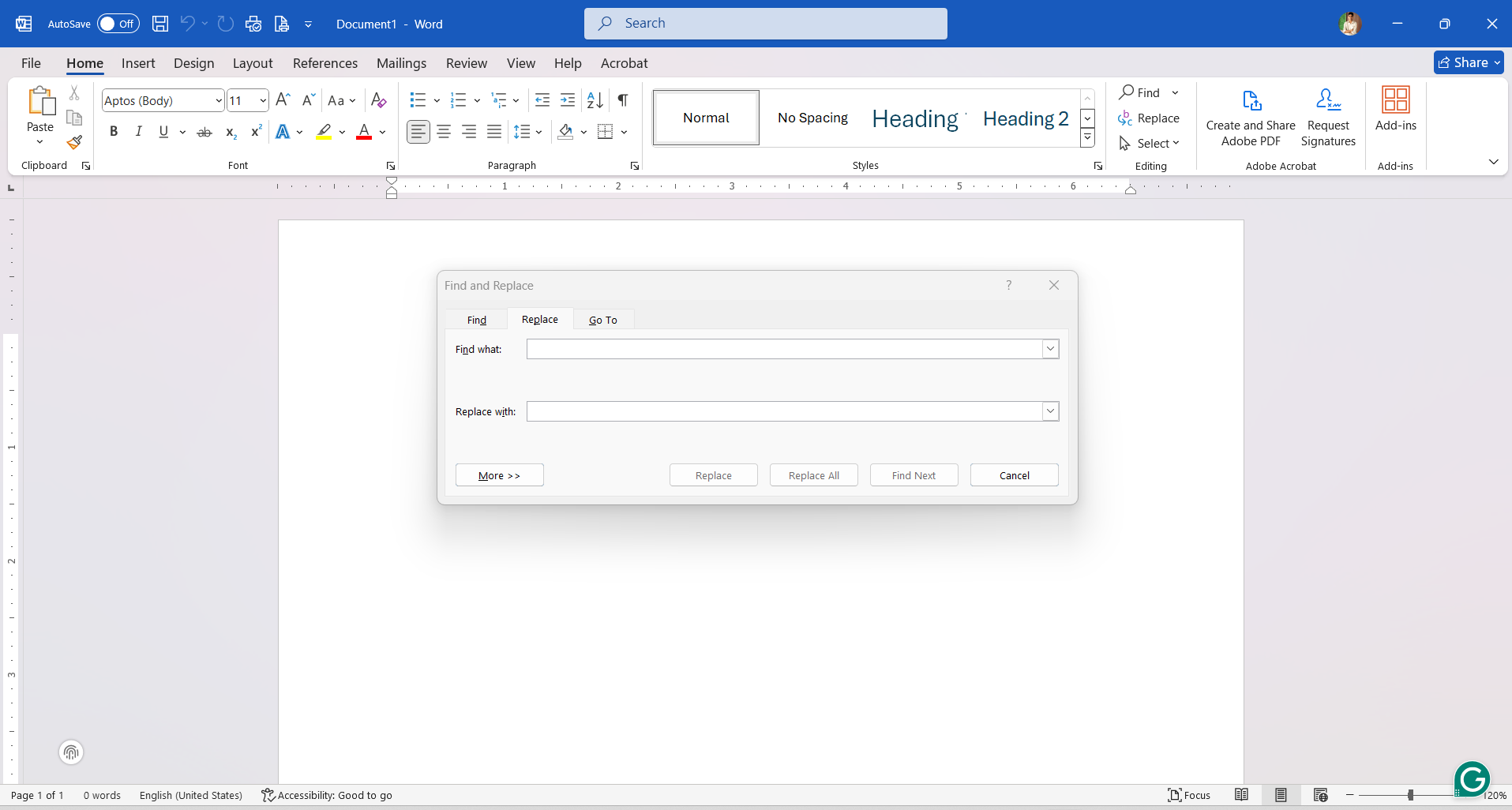
Find and Replace dialog box for searching and replacing text
Find (Search for Text):
- Press Ctrl + F
- Type word or phrase to search
- Press Enter or click Find Next
- Word highlights each occurrence
- Click X to close search
Replace (Change Text):
- Press Ctrl + H
- Type word to find in "Find what" box
- Type replacement word in "Replace with" box
- Choose option:
- Replace: Change current occurrence only
- Replace All: Change all occurrences at once
- Find Next: Skip to next occurrence
💡 Find and Replace Tips
- Use "Match case" to find exact capitalization
- Use "Find whole words only" to avoid partial matches
- Can search for special characters (tabs, line breaks)
- Can replace formatting, not just text
📊 Word Count
Check number of pages, words, characters
Access: Review Tab → Word Count
Status Bar: Shows word count at bottom of window
Word Count Shows:
- Pages
- Words
- Characters (no spaces)
- Characters (with spaces)
- Paragraphs
- Lines
1️⃣2️⃣ Printing Documents
👁️ Print Preview
Always preview before printing to save paper!
Access: File Tab → Print (shows preview automatically in Word 2021)
What to Check in Print Preview:
- ✅ Correct page orientation
- ✅ Margins look good
- ✅ Images positioned correctly
- ✅ Text not cut off
- ✅ Page breaks in right places
- ✅ Headers/footers visible
- ✅ All pages included
🖨️ Printing
Print Settings (Word 2021):
| Setting | Options | Description |
|---|---|---|
| Printer | Select from list | Choose which printer to use |
| Copies | 1, 2, 3... | Number of copies to print |
| Pages | All, Current, Custom | Which pages to print |
| Orientation | Portrait, Landscape | Page direction |
| Paper Size | A4, Letter, Legal, etc. | Size of paper |
| Collated | Yes/No | Print full sets in order |
| Color | Color, Black & White | Ink type |
| Pages per Sheet | 1, 2, 4, 6, 8, 16 | Multiple pages on one sheet |
Custom Page Range Examples:
- 1-5 → Prints pages 1 to 5
- 1,3,5 → Prints only pages 1, 3, and 5
- 1-3,7,10-12 → Prints pages 1 to 3, page 7, and pages 10 to 12
💾 Saving as PDF Instead of Printing
To save paper and create digital copy:
- File → Save As
- Choose location
- In "Save as type" dropdown, select PDF
- Click Save
OR
- File → Print
- Select "Microsoft Print to PDF" as printer
- Click Print
- Choose save location and name
Benefits of PDF:
- ✅ Cannot be easily edited (maintains formatting)
- ✅ Opens on any device
- ✅ Smaller file size
- ✅ Professional appearance
- ✅ Easy to email
1️⃣3️⃣ Mail Merge
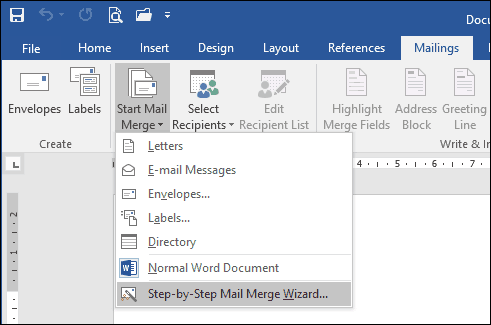
Mail Merge tools and layout in MS Word for bulk letters and emails
📬 What is Mail Merge?
Mail Merge creates multiple personalized documents from one template by combining:
🔑 Two Main Components:
- Master Document (Main Document): Template with placeholders/fields
- Data Source (Address List): Table with names, addresses, and other information
🎯 Uses of Mail Merge
✉️ Letters
Personalized letters to many recipients
🎫 Invitations
Event invitations with individual names
🏆 Certificates
Awards with different names and details
🏷️ Labels
Address labels for envelopes
📧 Emails
Mass emails with personal touches
📮 Envelopes
Addressed envelopes in bulk
📋 Mail Merge Process in Word 2021
Step-by-Step Guide:
STEP 1: Create the Main Document
- Open Word and type your letter/invitation/certificate
- Leave blank spaces where personalized information will go
- Example: "Dear _____, You are invited to _____"
STEP 2: Start Mail Merge
- Go to Mailings Tab
- Click Start Mail Merge
- Select document type:
- Letters
- E-mail Messages
- Envelopes
- Labels
- Directory
STEP 3: Select Recipients (Data Source)
Mailings → Select Recipients
Choose one option:
- Type a New List: Create new address list
- Use an Existing List: Open saved data file
- Choose from Outlook Contacts: Use email contacts
Creating New Address List:
- Click "Type a New List"
- Click "Create"
- Click "Customize Columns" to add/delete/rename fields
- Enter data for each person (New Entry for each)
- Click OK when done
- Save the address list with a name
Common Fields:
- Title (Mr., Mrs., Ms., Dr.)
- First Name
- Last Name
- Address Line 1
- Address Line 2
- City
- Postal Code
- Custom fields (Date, Time, Event Name, etc.)
STEP 4: Insert Merge Fields
- Place cursor where personalized info should appear
- Click Insert Merge Field (Mailings Tab)
- Select field from dropdown (e.g., First_Name)
- Field appears like this: «First_Name»
- Repeat for all fields needed
Quick Options:
- Address Block: Inserts complete address automatically
- Greeting Line: Inserts "Dear [Name]" automatically
STEP 5: Preview Results
- Click Preview Results (Mailings Tab)
- See how document looks with actual data
- Use arrows to navigate through recipients
- Check for errors or formatting issues
STEP 6: Complete the Merge
- Click Finish & Merge (Mailings Tab)
- Choose option:
- Edit Individual Documents: Creates new document with all merged letters (best option for exam!)
- Print Documents: Print directly
- Send Email Messages: Email to recipients
- Save the merged document
📝 Mail Merge Example
Master Document Template:
«Date»
«Title» «First_Name» «Last_Name»
«Address_Line_1»
«Address_Line_2»
«City»
Dear «First_Name»,
You are cordially invited to our Annual Day celebration on «Event_Date» at «Event_Time».
Sincerely,
Principal
Data Source (Sample Records):
| Title | First_Name | Last_Name | Address_Line_1 | City | Event_Date |
|---|---|---|---|---|---|
| Mr. | Kasun | Perera | 45 Main Street | Colombo | Dec 15, 2024 |
| Mrs. | Nimal | Silva | 12 Lake Road | Kandy | Dec 15, 2024 |
| Ms. | Anjali | Fernando | 78 Hill Avenue | Galle | Dec 15, 2024 |
📋 Mail Merge in LibreOffice Writer
Quick Steps:
- Tools → Mail Merge Wizard
- Select starting document (use current)
- Select document type (Letter)
- Insert address block → Create new list
- Customize fields and enter data
- Save address list
- Create salutation (greeting line)
- Adjust layout
- Preview and edit
- Save or print merged documents
⚠️ Important Mail Merge Tips for Exam
- ✅ Always save the data source separately first
- ✅ Use meaningful field names (no spaces, use underscore)
- ✅ Preview before finalizing to check for errors
- ✅ Remember: Master Document + Data Source = Merged Documents
- ✅ Know the difference between "Edit Individual Documents" and "Print"
- ✅ Can filter recipients (select only some people)
1️⃣4️⃣ Essential Shortcut Keys
⚡ Memorize These for Faster Work and Better Exam Performance!
📄 File Operations
✂️ Editing Operations
🎨 Text Formatting
📐 Paragraph Formatting
🧭 Navigation
🛠️ Other Useful Shortcuts
1️⃣5️⃣ Important Exam Tips & Key Differences
🎯 Most Common Exam Questions
- ✅ Benefits of word processing over typewriter/handwriting
- ✅ Difference between MS Word and LibreOffice Writer
- ✅ File extensions (.docx, .doc, .odt, .pdf)
- ✅ Steps to save document with password
- ✅ Mail merge complete process
- ✅ Page setup (orientation, margins, paper size)
- ✅ Types of alignment and when to use each
- ✅ Types of indentation with examples
- ✅ How to insert and format tables
- ✅ Spelling and grammar checking process
- ✅ Find and Replace usage
- ✅ Shortcut keys (VERY IMPORTANT!)
- ✅ Cloud computing advantages
- ✅ Header vs Footer
- ✅ Difference between Save and Save As
📝 MS Word 2021 vs LibreOffice Writer
| Feature | Microsoft Word 2021 | LibreOffice Writer |
|---|---|---|
| Cost | Commercial (Paid license) | Free (Open Source) |
| Producer | Microsoft Corporation | The Document Foundation |
| File Extension | .docx (default), .doc | .odt (default) |
| Interface | Ribbon with tabs | Menu bar with toolbars |
| New Document Name | Document1, Document2... | Untitled1, Untitled2... |
| Page Setup | Layout → Page Setup | Format → Page |
| Spell Check | Review → Spelling & Grammar | Tools → Spelling & Grammar |
| Mail Merge | Mailings tab | Tools → Mail Merge Wizard |
| Thesaurus | Review → Thesaurus | Tools → Language → Thesaurus |
| Insert Picture | Insert → Pictures | Insert → Picture → From File |
| Columns | Layout → Columns | Format → Columns |
| WordArt | Insert → WordArt | Insert → Object → FontWork |
| Compatibility | Can open .odt files | Can open .docx files |
| Platform | Windows, Mac, Web | Windows, Mac, Linux |
✅ Practical Exam Preparation Checklist
- ☑️ Practice daily: Open Word/LibreOffice and try all features
- ☑️ Memorize shortcuts: They save time and earn marks!
- ☑️ Know both software: MS Word 2021 AND LibreOffice Writer
- ☑️ Master mail merge: Very common practical question
- ☑️ Practice formatting: Alignment, indentation, borders, shading
- ☑️ Learn to insert: Tables, images, shapes, symbols
- ☑️ Master file operations: Save, Save As, Open, Close, Password
- ☑️ Understand page setup: Size, orientation, margins
- ☑️ Know proofing tools: Spell check, thesaurus, find & replace
- ☑️ Practice printing: Print preview, page selection, PDF saving
📊 Key Concepts Summary
1. File Management
| Save (Ctrl+S) | First time: choose name and location. After: saves changes to same file |
| Save As (F12) | Save with different name, location, or format. Creates separate copy |
| Open (Ctrl+O) | Open existing saved document |
| Close (Ctrl+W) | Close current document (prompts to save if unsaved changes) |
2. Alignment Types - When to Use
| Left Align | Body text, paragraphs, general content (most common) |
| Center Align | Titles, headings, invitations, certificates |
| Right Align | Dates in letters, signatures, page numbers |
| Justify | Newspapers, magazines, formal reports (professional look) |
3. Indentation Types - Uses
| First Line Indent | Essays, stories, traditional paragraph style |
| Hanging Indent | Bibliographies, reference lists, dictionary entries |
| Left Indent | Block quotes, sub-sections, nested content |
| Right Indent | Narrow text columns, special formatting |
1️⃣6️⃣ Practice Questions for Exam Preparation
📚 Theory Questions (Short Answers)
Q1. What is word processing? List FIVE benefits.
Answer:
Word Processing is the creation, editing, formatting, and printing of documents using computer software.
Five Benefits:
- Easy Editing: Can modify text without rewriting entire document
- Saving & Retrieving: Documents can be saved and opened anytime
- Formatting Options: Can change fonts, colors, alignment, and styles
- Spell Checking: Automatic detection and correction of spelling/grammar errors
- Insert Objects: Can add images, tables, shapes, and other objects
Additional benefits: Mail merge, Find & Replace, Print preview, Multiple copies easily
Q2. Name FOUR word processing software and state whether they are free or paid.
Answer:
| Software | Type |
|---|---|
| Microsoft Word 2021 | Paid (Commercial) |
| LibreOffice Writer | Free (Open Source - FOSS) |
| Google Docs | Free (Cloud-based) |
| OpenOffice Writer | Free (Open Source - FOSS) |
Q3. What is cloud computing in word processing? Give TWO examples and THREE advantages.
Answer:
Cloud Computing in Word Processing: Using word processing software over the internet without installing it on your computer. Documents are created and stored online.
Two Examples:
- Google Docs
- Microsoft 365 Online (Office Online)
Three Advantages:
- No Installation Needed: Don't need to install software on computer
- Access Anywhere: Can access documents from any device with internet
- Automatic Saving: Documents automatically saved to cloud storage
Additional: No hard disk space needed, always latest version, real-time collaboration
Q4. Explain the difference between Portrait and Landscape orientation with examples.
Answer:
| Aspect | Portrait | Landscape |
|---|---|---|
| Direction | Vertical (Upright) | Horizontal (Sideways) |
| Dimensions | Height > Width | Width > Height |
| Default | Yes (default orientation) | No |
| Used For | Letters, essays, reports, books | Wide tables, charts, certificates |
Q5. What are the FOUR types of text alignment? Give one use for each.
Answer:
| Alignment | Shortcut | Description | Use |
|---|---|---|---|
| Left Align | Ctrl + L | Text lines up on left margin | Body text, paragraphs |
| Center Align | Ctrl + E | Text centered on page | Titles, headings, invitations |
| Right Align | Ctrl + R | Text lines up on right margin | Dates in letters, signatures |
| Justify | Ctrl + J | Text lines up on both margins | Newspapers, magazines, formal reports |
Q6. Explain the difference between bullets and numbering. When would you use each?
Answer:
| Aspect | Bullets | Numbering |
|---|---|---|
| Markers | Symbols (●, ○, ■, ✓) | Numbers (1, 2, 3...) or letters (A, B, C...) |
| Order | Order doesn't matter (unordered) | Order is important (ordered/sequential) |
| When to Use | Shopping lists, features, options | Steps, instructions, rankings, procedures |
| Example | • Apples • Bananas • Oranges |
1. Turn on computer 2. Open Word 3. Type document |
Q7. What is Mail Merge? State the TWO main components and give THREE uses.
Answer:
Mail Merge: A feature that creates multiple personalized documents from one template by combining a master document with a data source.
Two Main Components:
- Master Document (Main Document): Template letter/certificate with field placeholders like «First_Name», «Address»
- Data Source (Address List): Table containing names, addresses, and other information for multiple recipients
Three Uses:
- Personalized Letters: Sending same letter to many people with their individual names
- Certificates: Creating multiple certificates with different names and achievements
- Invitations: Making invitation cards for many guests with their names
Additional uses: Address labels, envelopes, email messages
Q8. Explain the difference between .doc, .docx, .odt, and .pdf file formats.
Answer:
| Format | Software | Characteristics |
|---|---|---|
| .doc | MS Word 97-2003 | Old Word format, larger file size, widely compatible |
| .docx | MS Word 2007 onwards | Current Word format, smaller file size, XML-based, can be edited |
| .odt | LibreOffice/OpenOffice | Open Document format, free and open standard, can be edited |
| Adobe (any software can create) | Portable Document Format, cannot be easily edited, maintains formatting, opens on any device |
Q9. How do you protect a Word document with a password? Write the steps.
Answer:
Steps for MS Word 2021:
- Click File → Save As
- Choose the location where you want to save
- Type the file name
- Click Tools dropdown button (at bottom of dialog box)
- Select General Options
- Enter password in "Password to open" field
- Click OK
- Re-enter the same password to confirm
- Click OK again
- Click Save button
Steps for LibreOffice Writer:
- File → Save As
- Choose location and type file name
- Check the box "Save with password"
- Click Save
- Enter password in the dialog box
- Re-enter password in second field
- Click OK
⚠️ Important: If you forget the password, the document cannot be opened!
Q10. What is the difference between Header and Footer? Give examples of content for each.
Answer:
| Aspect | Header | Footer |
|---|---|---|
| Position | Top of every page | Bottom of every page |
| Purpose | Display information that appears at top | Display information that appears at bottom |
| Common Content | • Document title • Company name • Logo • Chapter name |
• Page numbers • Author name • Date • Copyright information |
| Access | Insert → Header | Insert → Footer |
Note: Both appear automatically on all pages of the document
Q11. Explain FOUR types of indentation with examples.
Answer:
1. Left Indentation:
Entire paragraph moves away from left margin. All lines indented equally.
Example: Block quotations, sub-points in outlines
2. Right Indentation:
Entire paragraph moves away from right margin. Creates narrower text.
Example: Special formatting, narrow columns
3. First Line Indent:
Only the first line of paragraph is indented. Rest of lines start at left margin.
Example: Traditional paragraphs in essays, stories, books
This is the first line which is indented. The second line and remaining lines of this paragraph start from the left margin without any indentation.
4. Hanging Indent:
First line at margin, all other lines indented. Opposite of first line indent.
Example: Bibliographies, reference lists, dictionary entries
Silva, N. (2024). Introduction to Information Technology. Colombo: Educational Publishers. This shows how the first line starts at margin while other lines are indented.
Q12. What is the difference between Save and Save As?
Answer:
| Aspect | Save (Ctrl + S) | Save As (F12) |
|---|---|---|
| First Time | Opens dialog to choose name & location | Opens dialog to choose name & location |
| After First Save | Saves changes to existing file (same name, same location) | Always opens dialog to choose new name/location |
| Creates New File | No (updates existing file) | Yes (creates separate copy) |
| Original File | Gets overwritten with changes | Remains unchanged (if new name given) |
| Change Format | Cannot change file format | Can change format (.docx to .pdf, etc.) |
| Use When | Regular saving during work | Creating copy, changing name/location/format |
Example: If you have "Report.docx" and use Save As to create "Report_Final.docx", you now have TWO separate files.
Q13. List FIVE features available in the Home tab/ribbon of MS Word.
Answer:
Five Features in Home Tab:
- Font Group: Change font type, size, color, bold, italic, underline (Ctrl+B, Ctrl+I, Ctrl+U)
- Paragraph Group: Text alignment (left, center, right, justify), line spacing, bullets, numbering
- Clipboard Group: Cut (Ctrl+X), Copy (Ctrl+C), Paste (Ctrl+V), Format Painter
- Styles Group: Apply predefined styles like Heading 1, Heading 2, Normal text
- Editing Group: Find (Ctrl+F), Replace (Ctrl+H), Select All (Ctrl+A)
Additional features: Text effects, highlighting, shading, borders, change case
Q14. What is a Thesaurus and how is it used in word processing?
Answer:
Thesaurus: A tool that provides synonyms (words with similar meanings) and antonyms (words with opposite meanings) for selected words.
How to Use:
- Select the word you want to replace
- Go to Review Tab → Thesaurus (or press Shift + F7)
- Browse the list of synonyms displayed
- Click on the synonym you want to use
- Word replaces the original word
Purpose:
- Avoid repeating the same word multiple times
- Find more appropriate or precise words
- Improve vocabulary and writing quality
- Make documents more professional
Example: "Happy" → synonyms include: joyful, cheerful, delighted, pleased, glad
Q15. Explain the purpose of Print Preview before printing.
Answer:
Print Preview: A feature that shows exactly how the document will look when printed on paper, before actually printing.
Purposes/Benefits:
- Save Paper: Identify errors before printing, avoiding waste
- Save Ink/Toner: Avoid printing incorrect documents
- Check Formatting: Verify margins, alignment, spacing look correct
- Verify Layout: Ensure images, tables, and text are positioned properly
- Check Page Breaks: See where pages start and end
- Preview All Pages: View entire document before printing
- Verify Headers/Footers: Check if they appear correctly on all pages
Access: File → Print (preview appears automatically in Word 2021)
What to Check:
- ✓ Correct page orientation (portrait/landscape)
- ✓ Margins look appropriate
- ✓ Text not cut off at edges
- ✓ Images positioned correctly
- ✓ Page numbers visible
- ✓ All content fits on pages properly
💻 Practical Tasks (Hands-on Practice)
Task 1: Basic Formatting
- Create a new document
- Type three paragraphs about computers
- Format first paragraph: Arial, 12pt, Bold, Blue color
- Format second paragraph: Times New Roman, 14pt, Italic, Center aligned
- Format third paragraph: Calibri, 11pt, Justify aligned
- Save as "Formatting_Practice.docx"
Task 2: Page Setup & Margins
- Create new document with A4 size, Landscape orientation
- Set margins: Top=2cm, Bottom=2cm, Left=3cm, Right=3cm
- Type content and verify margins in Print Preview
- Save as "Page_Setup_Practice.docx"
Task 3: Lists and Indentation
- Create a document titled "Computer Hardware"
- Create a bullet list of 5 input devices
- Create a numbered list of 5 output devices
- Create a multilevel list showing:
- 1. Primary Memory → a. RAM → i. SRAM, ii. DRAM
- 2. Secondary Memory → a. Hard Disk, b. SSD
- Apply first line indent to a paragraph
- Save document
Task 4: Table Creation
- Create a table with 5 columns and 6 rows
- Title: "Student Marks Sheet"
- Columns: Roll No, Name, Math, Science, Total
- Merge first row cells for title
- Add borders and shading
- Center align all text in table
- Save as "Table_Practice.docx"
Task 5: Insert Objects
- Create new document
- Insert a picture from your computer
- Resize and position the image
- Insert 3 different shapes (circle, rectangle, arrow)
- Insert symbols: ©, ®, ™, °, ±
- Add page border
- Save document
Task 6: Header, Footer & Page Numbers
- Create a 3-page document (use Page Break: Ctrl+Enter)
- Add Header: "O/L IT Exam - 2024"
- Add Footer: Your name on left, date on right
- Insert page numbers at bottom center
- Verify all pages have header/footer
- Save document
Task 7: Find and Replace
- Type a paragraph using the word "computer" 10 times
- Use Find (Ctrl+F) to locate all "computer" words
- Use Replace (Ctrl+H) to change "computer" to "laptop"
- Replace all at once
- Save document
Task 8: Spell Check & Thesaurus
- Type a paragraph with intentional spelling errors
- Run Spelling & Grammar check (F7)
- Correct all errors
- Select the word "happy" and open Thesaurus (Shift+F7)
- Replace with a synonym
- Save document
Task 9: Mail Merge (Most Important!)
- Create invitation letter template:
Dear «Title» «First_Name» «Last_Name»,

You are invited to our Annual Day celebration.

Date: «Event_Date»
Time: «Event_Time»
Venue: School Auditorium

Please confirm your participation.

Sincerely,
Principal
- Create data source with 5 records (names, dates, times)
- Insert merge fields in appropriate places
- Preview results
- Complete merge to create individual documents
- Save both master document and merged documents
Task 10: Complete Document Creation
- Create a certificate of achievement:
- Center aligned title "Certificate of Achievement"
- Insert decorative border
- Add WordArt for title
- Include recipient name (use larger font)
- Add achievement details
- Insert date and signature line
- Add background shading or color
- Save as PDF format
🎓 Shortcut Keys Quiz - Answer These!
What do these shortcuts do?
- Ctrl + S = ?
- Ctrl + Z = ?
- Ctrl + Y = ?
- Ctrl + A = ?
- Ctrl + F = ?
- Ctrl + H = ?
- Ctrl + B = ?
- Ctrl + E = ?
- Ctrl + J = ?
- F7 = ?
- Shift + F7 = ?
- Ctrl + Home = ?
- Ctrl + End = ?
- Ctrl + P = ?
- F12 = ?
Answers:
1. Save | 2. Undo | 3. Redo | 4. Select All | 5. Find | 6. Replace | 7. Bold | 8. Center Align | 9. Justify | 10. Spell Check | 11. Thesaurus | 12. Start of Document | 13. End of Document | 14. Print | 15. Save As
📌 Quick Reference Summary
📖 Complete Coverage:
- ✅ Introduction: Word processing definition, benefits, software types
- ✅ MS Word 2021 Interface: Ribbon, tabs, toolbars, components
- ✅ File Management: New, Save, Save As, Open, Close, Password protection
- ✅ Page Setup: Paper size, orientation, margins
- ✅ Text Formatting: Font, size, color, bold, italic, effects
- ✅ Paragraph Formatting: Alignment, indentation, spacing, borders
- ✅ Lists: Bullets, numbering, multilevel lists
- ✅ Insert Objects: Pictures, shapes, tables, symbols, WordArt
- ✅ Headers & Footers: Page numbers, document information
- ✅ Proofing: Spell check, grammar, thesaurus, find & replace
- ✅ Printing: Print preview, print options, PDF saving
- ✅ Mail Merge: Complete process with examples
- ✅ Shortcuts: All essential keyboard shortcuts
- ✅ Practice: Theory questions and practical tasks
🎯 Final Exam Tips:
- ✔️ Memorize shortcuts - they're often asked and save time
- ✔️ Practice mail merge - very common practical question
- ✔️ Know differences - MS Word vs LibreOffice Writer
- ✔️ Understand file formats - .docx, .odt, .pdf, .doc
- ✔️ Master alignment - know when to use each type
- ✔️ Learn indentation types - with real examples
- ✔️ Practice table operations - insert, merge, split, format
- ✔️ Remember proofing tools - spell check, thesaurus, find & replace
- ✔️ Don't forget page setup - margins, orientation, paper size
- ✔️ Study both software - you might be asked about either one
📱 Study Strategy
Week 1-2
Basic operations, formatting, shortcuts
Week 3-4
Tables, objects, page setup
Week 5-6
Mail merge practice intensively
Week 7-8
Complete practice tests, revision
"Success comes from preparation, practice, and persistence!"
Remember the 3 P's:
📚
PREPARE
Study all topics
💻
PRACTICE
Use the software daily
🎯
PERFORM
Give your best in exam